


Table of Contents
Create a Brochure in Microsoft Word, in short, is not very difficult.
It is just a matter of using the right template, designing a brochure that suits your particular needs and printing it with the help of a print company. In order to make the job easier, you can also add some extra embellishments, like ribbons, special boxes or envelopes, if you want to.
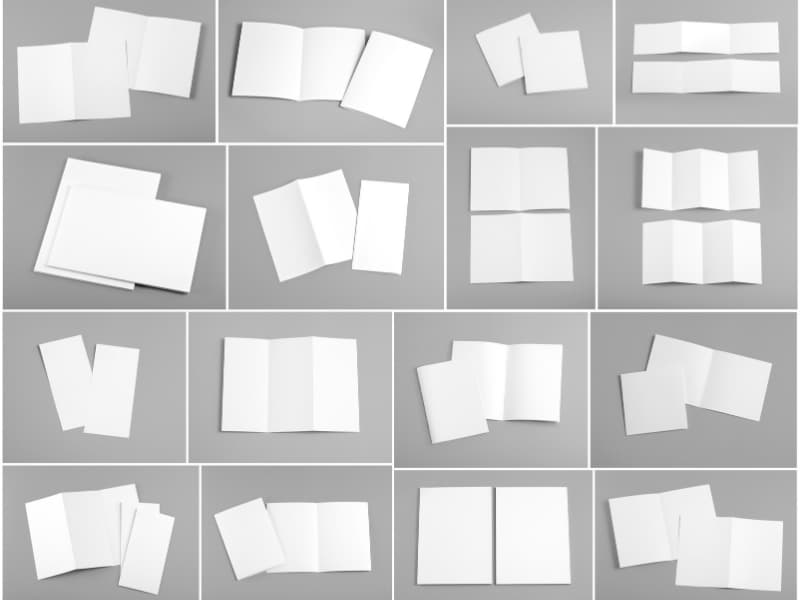
When choosing a brochure template, there are some things you should keep in mind. The first thing is to make sure that it has four or three sides, which means that the template has four or three sections. These four or three sides will be the layout of your brochure and everything that are displayed on them.
Once you have decided on the design for your template, then comes the next step, the page layout, of the brochure. A good template should be well laid out and make it easy for you to produce an appropriate size without sacrificing the readability of the text. Generally, the template should contain the name of the company, logo, title of the company, the name of the product or service, contact information, the price and other information that describe the products or services you are selling.
Next, you should choose a four-color scheme, using two light and two dark shades. Using a color wheel, you should choose the background of your brochure template as well as the foreground color. For the four-color scheme, it is a good idea if you use complementary colors for the background and the foreground. After you have done this, you should then create the topmost and bottommost layers. If you need any help combining the colors, this online tool can be very handy.
Interested also in other Marketing Related Articles? |
Create a Brochure in Microsoft Word by starting with templates
Microsoft Word is a popular word processor; however, it is also capable of creating brochures. It’s actually very easy to create a brochure with Word. To begin with, open a new document in Word, type up a Brochure, then press the enter key. Word will open a large library of standard brochure templates. Choose one that you like, then click on Create.
When the Create A Brochure window appears, choose a template in the format you wish to use from the library, such as “microsoft word”. You may want to also adjust some of the customization options, such as font types, placement of text, and color. When you have finished customizing your template, you may want to preview it so that you can make any changes before actually printing it off. This may be a good time to make any repairs that may be needed once you print the brochure.
After you have created your template in Microsoft Word, you simply need to enter in your text box contents. The text box will contain all of the major company details, including the company name, address, and logo. You may also enter additional text, such as a description of the company, its mission, and its logo. Finally, you may want to customize the
Create a Brochure in Microsoft Word, in short, is not very difficult.
It is just a matter of using the right template, designing a brochure that suits
cover image and color scheme.